Upload a report or test result
Add your lab results and scans to your record, including the tests your doctor asked for.
Upload a report
- 1
Open your reports
On Dashboard, open the Reports tab and tap Upload General report.
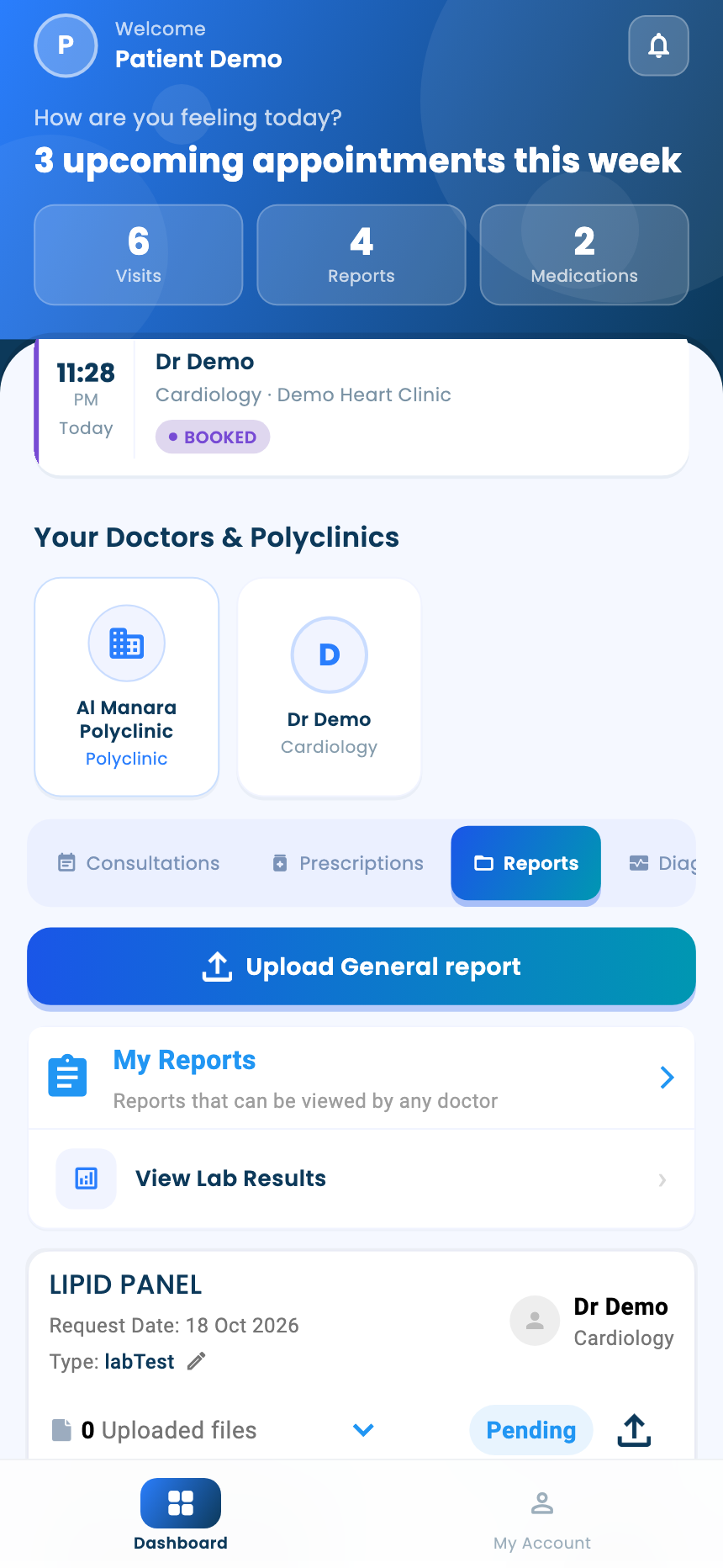
- 2
Describe it and add the files
Enter a Report Title, choose the Report Type (Scan or Lab Test), add a PDF or photos, then tap Upload report.
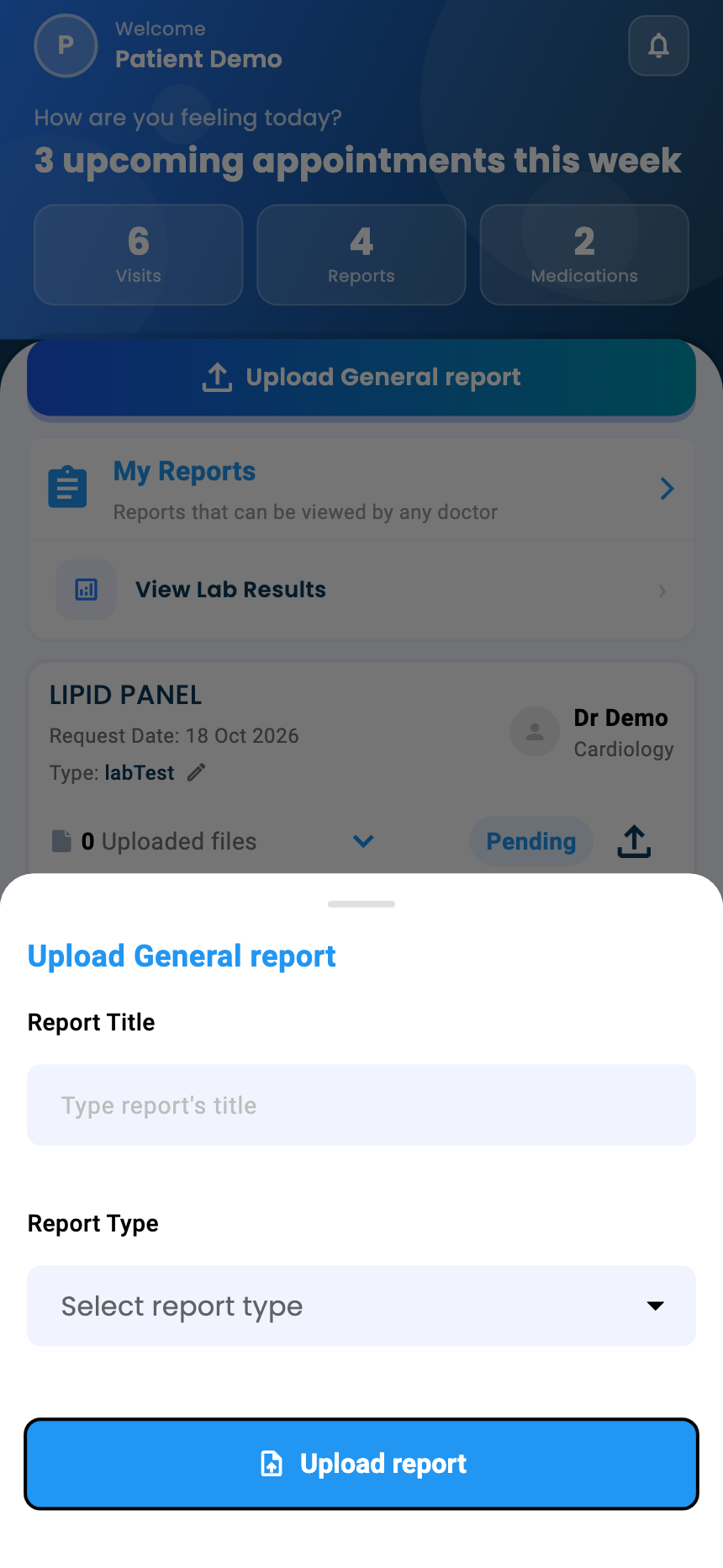
- 3
Lab results are read for you
A lab test is read automatically into your results table. Its status shows PENDING, then PROCESSING, then SUCCEEDED, or FAILED if the file couldn't be read.
Tests your doctor asked for
- 1
Upload a requested test
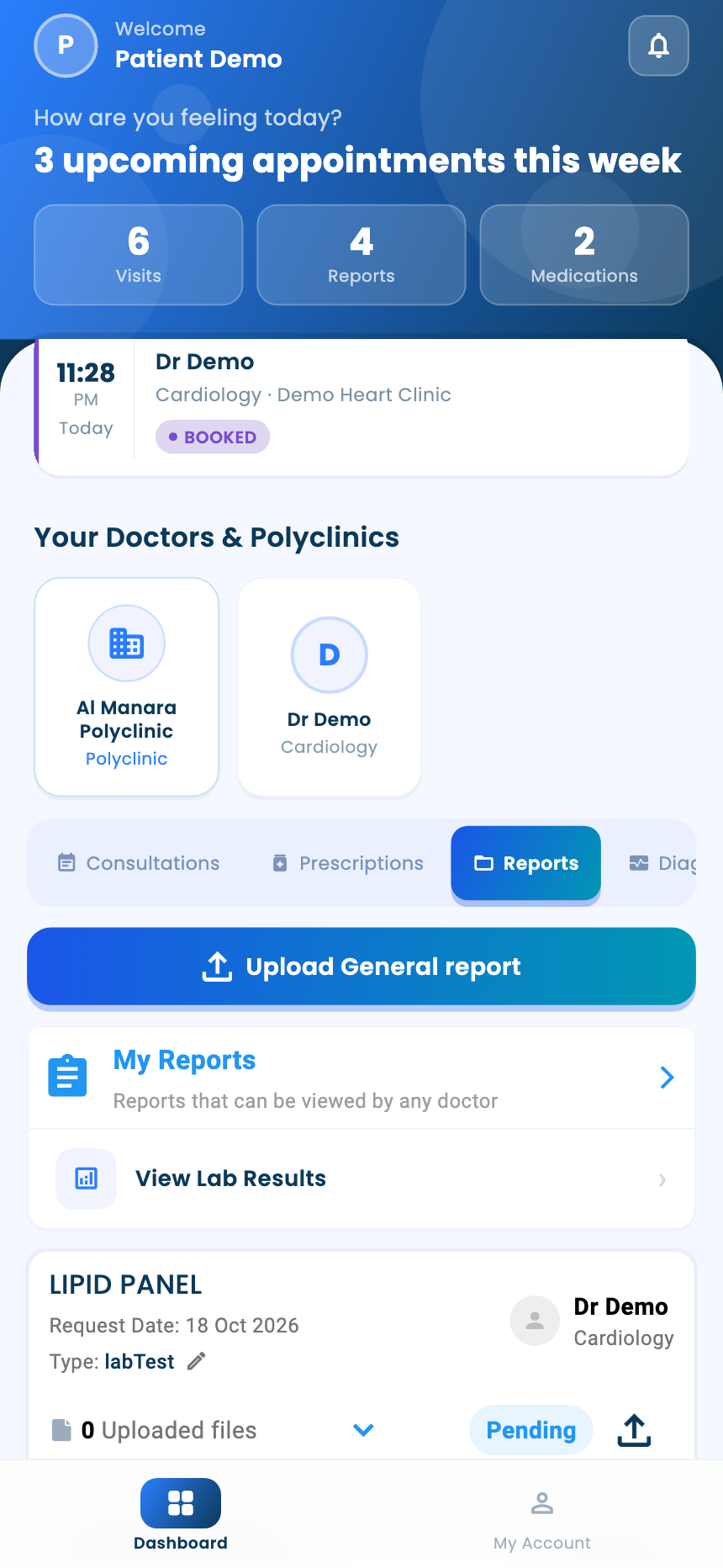
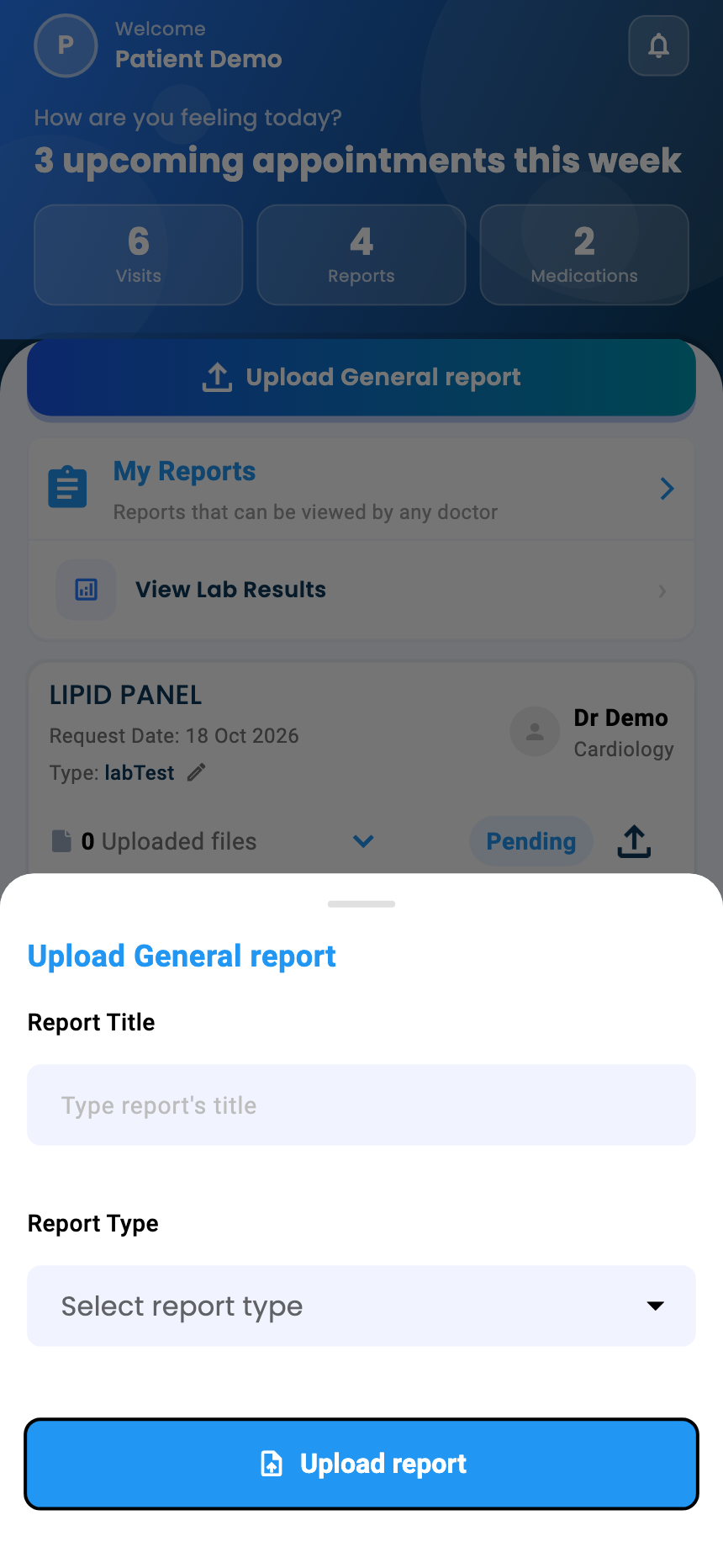
Tests your doctor requested appear under Requested Reports. When you have the result, tap the upload icon on the test's card.
- 2
Who sees your reports
Reports you upload yourself are in My Reports, and any doctor you see can view them.
Questions and answers
My lab test shows FAILED. What does that mean?
The file couldn't be read, so its results aren't in your results table.
Which files can I upload?
A PDF or photos.
Where are the tests my doctor asked for?
Under Requested Reports. When you have the result, tap the upload icon on the test's card.
What's next
Updated: 18 October 2026
Still stuck?
Our team answers on WhatsApp and email.