Work with a patient's file
Open a patient's file to see their history, upload reports, and read their lab results and archive.
Open the file
- 1
Find the patient
On the Patients tab, tap the patient.
- 2
What the file shows
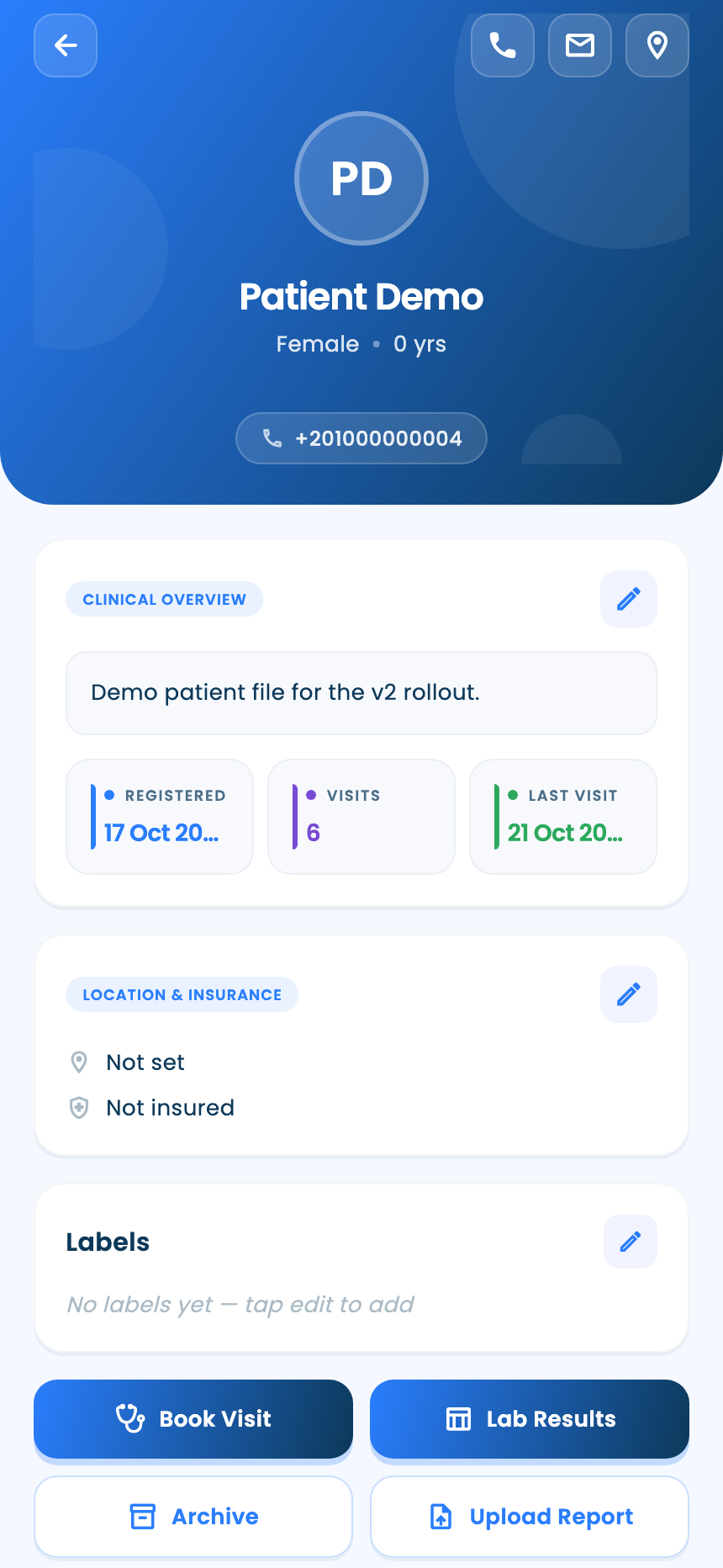
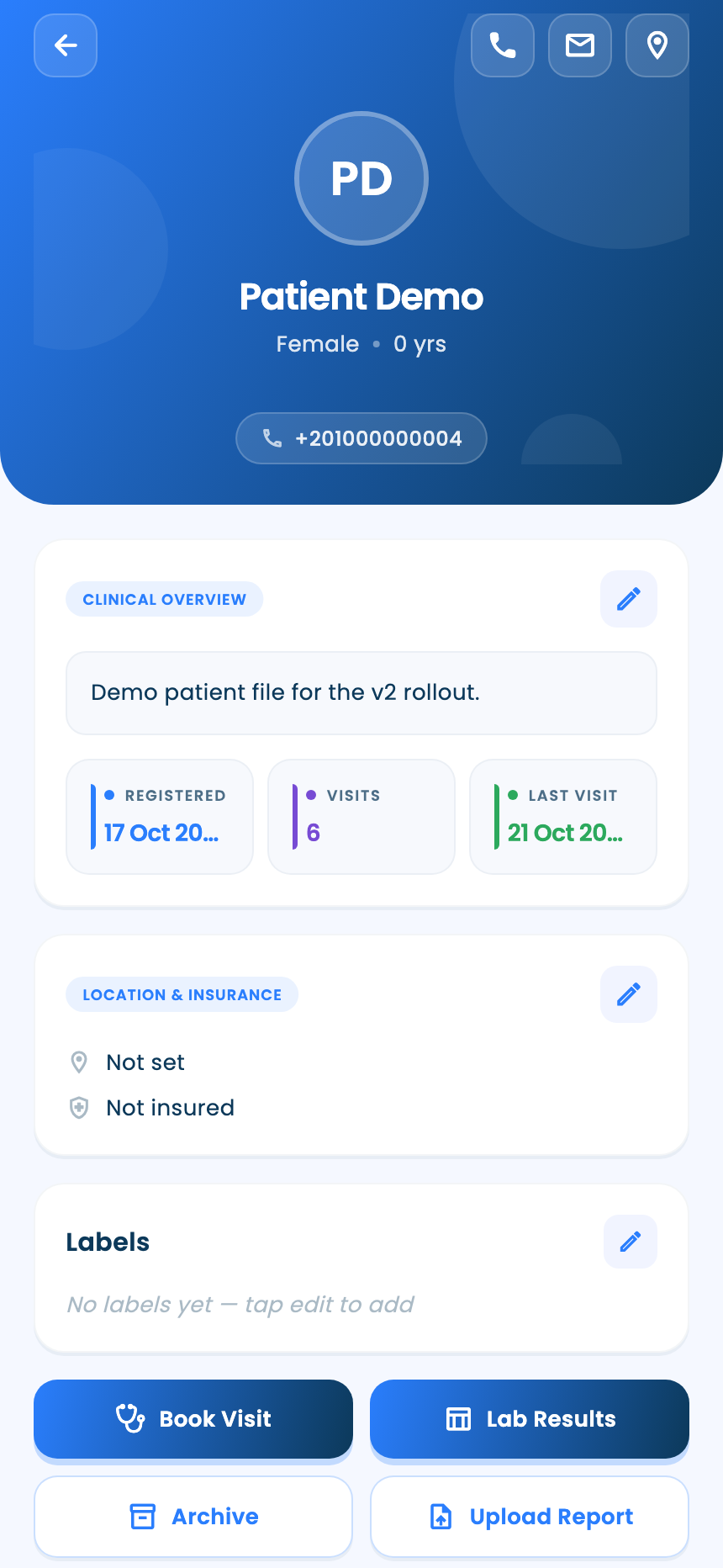
Contact details, a clinical overview you can edit, labels, insurance, and a timeline of every visit, medicine, report and comment, which you can filter.
Reports and results
- 1
Upload a report
Choose Lab Test or Scan, name the report, set its date and attach PDF or image files.
Tap Upload Report.
- 2
Lab results
Uploaded lab reports are read automatically into a table of results over time.
Tap Lab Results.
- 3
Older records
Keep the patient's older paper or PDF records in the archive. On plans that include it, an AI summary of the archive is written for you.
Tap Archive.
Questions and answers
Which files can I upload?
PDF or image files, as a Lab Test or a Scan.
Why is there no AI summary of the archive?
The AI summary is written on plans that include it.
On the web vs in the app
| What | Web portal | App |
|---|---|---|
| Lab results | View, correct values, read the file again | View |
| From the file | Archive and report upload as quick actions | Book Visit, Lab Results, Archive and Upload Report buttons |
What's next
Updated: 18 October 2026
Still stuck?
Our team answers on WhatsApp and email.