Book a visit
Book a patient into a free time at one of your clinics, and find your visits in the visits list.
Book the visit
- 1
Start a booking
On the Visits tab, tap New Visit, or Book Visit in a patient's file. Assistants tap Book Visit on Home.
- 2
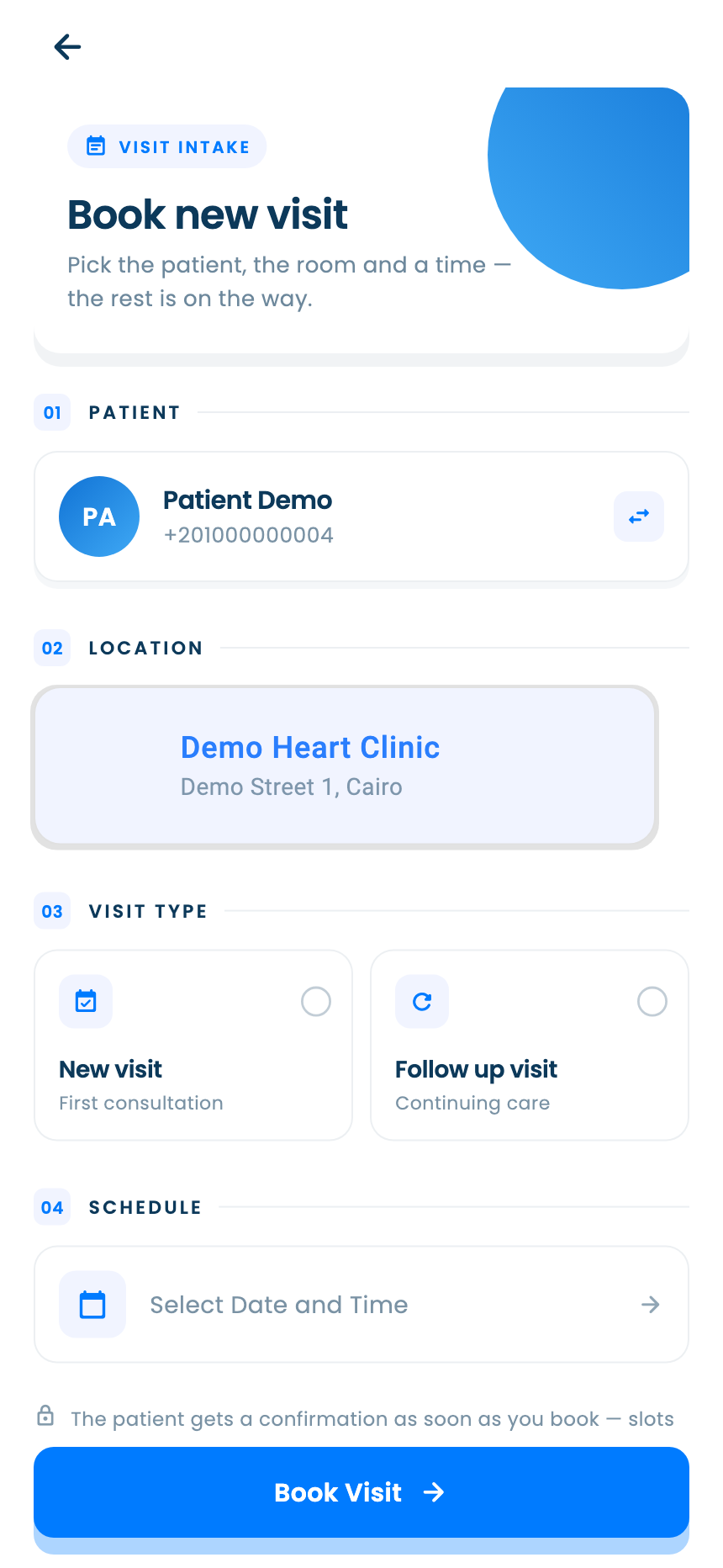
Choose the patient, clinic and visit type
Pick the patient, the clinic, and whether this is a new visit or a follow-up.
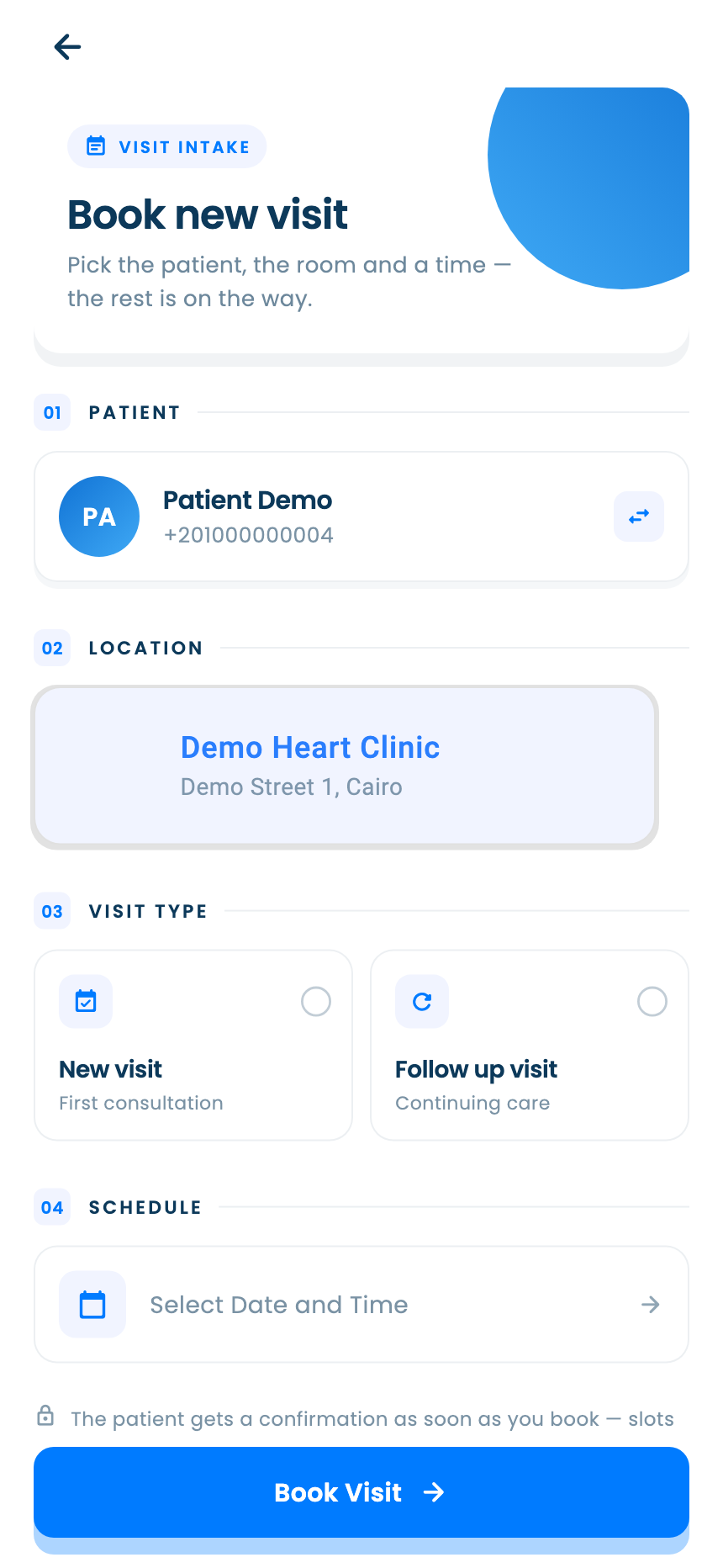
- 3
Pick a day and a time
The calendar marks which days have free times, which are blocked and which are fully booked. Pick a day, then a free time.
Tap Book Visit.
Find your visits
- 1
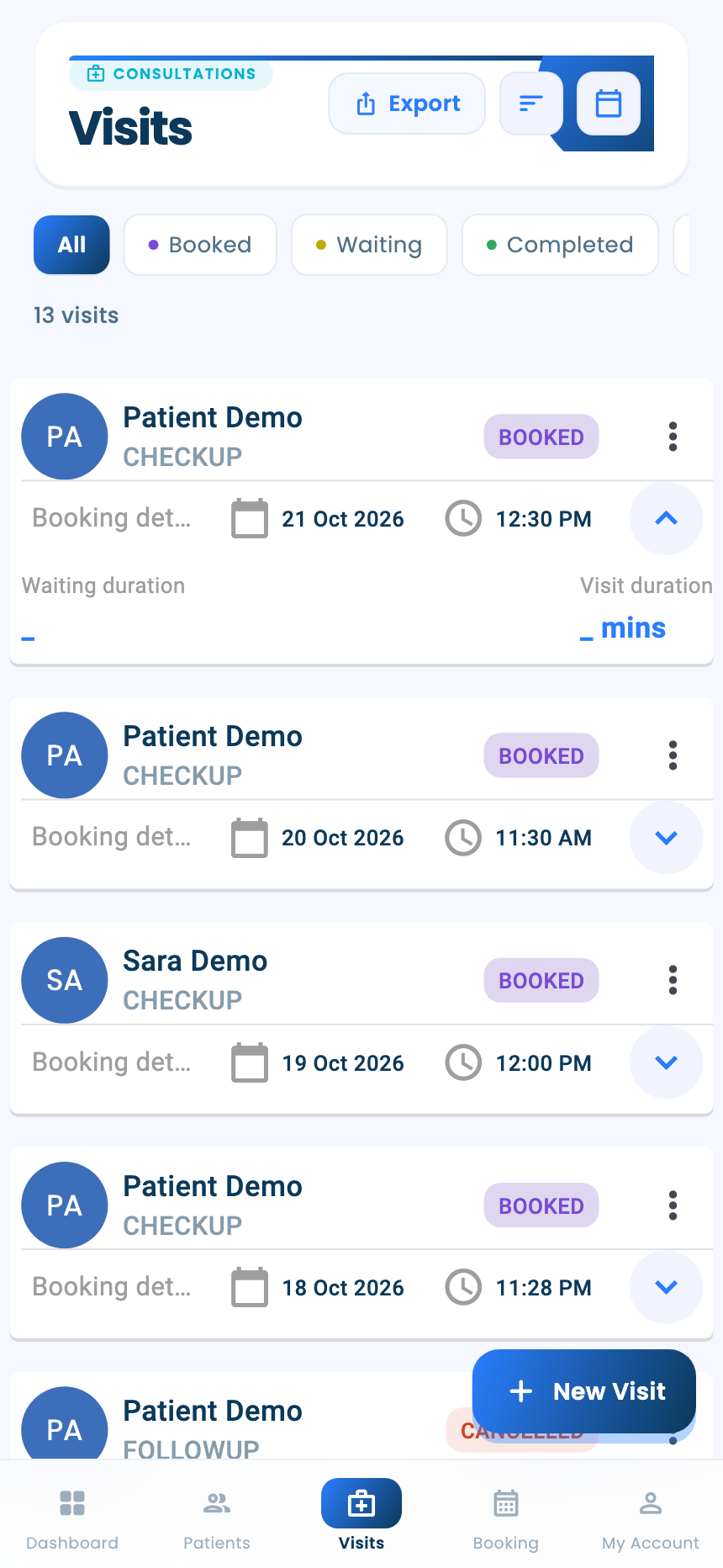
The visits list
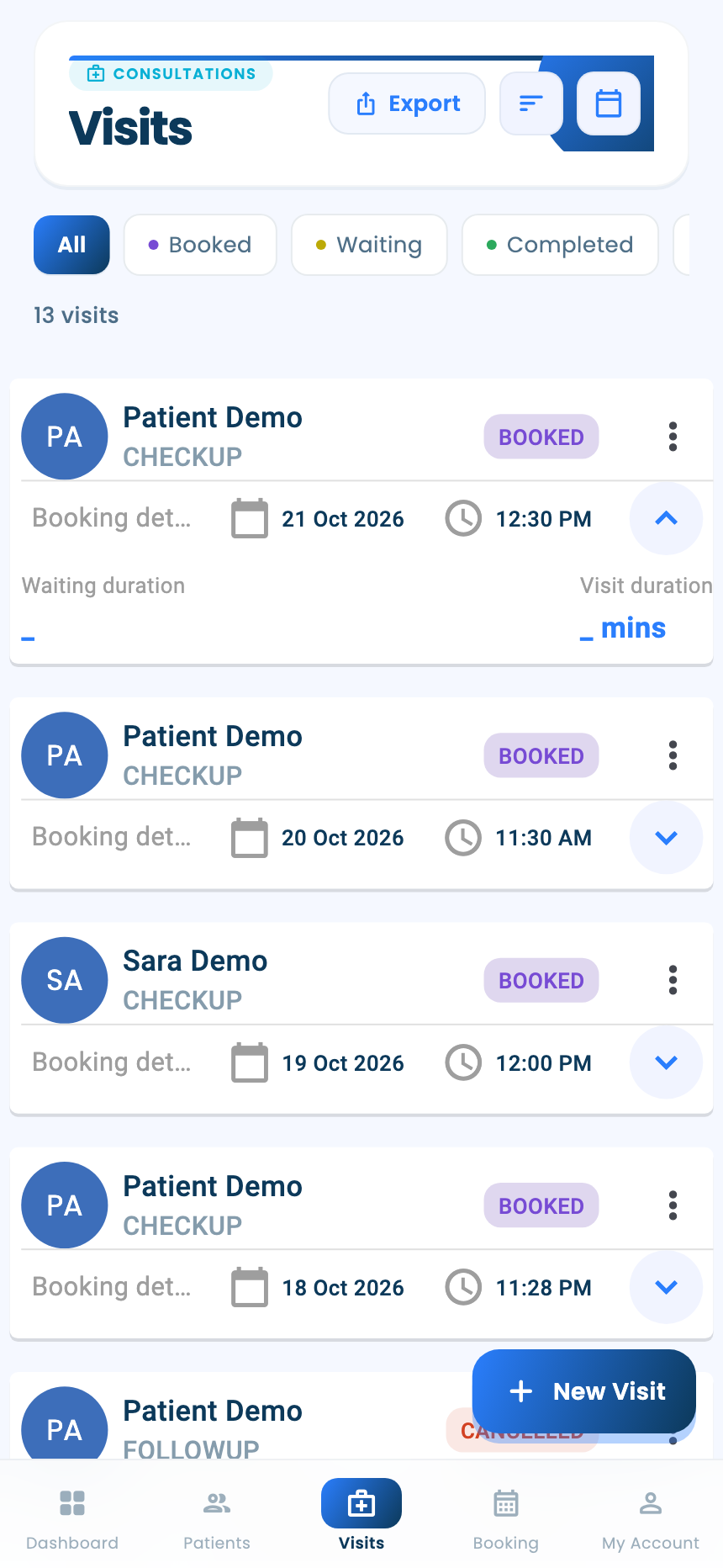
The Visits tab lists your visits with status filters, a date filter, sorting, and an Excel export you can share.
Questions and answers
Why are there no free times to book?
Free times come from your weekly hours, so a day without hours is closed. Blocked times and fully booked days have none either. A date-range schedule replaces the weekly hours between its dates.
Can new visits and follow-ups take different lengths of time?
Yes. In Slot Durations, in the online booking settings, set a length and a break for each visit type.
On the web vs in the app
| What | Web portal | App |
|---|---|---|
| Where you start | Dashboard, the Visits page, or after adding a patient | Visits tab or a patient's file; Home for assistants |
| Who books | Doctors | Doctors and assistants |
| The day's visits | A table, today by default, with a date range | Cards, with a date filter |
What's next
Updated: 18 October 2026
Still stuck?
Our team answers on WhatsApp and email.