Book a visit
Book a patient into a free time at one of your clinics, and find your visits in the visits list.
Book the visit
- 1
Start a booking
Click New Visit on the dashboard, or Book Visit after adding a patient. On Visits, the + button next to the status filters opens the same window.
- 2
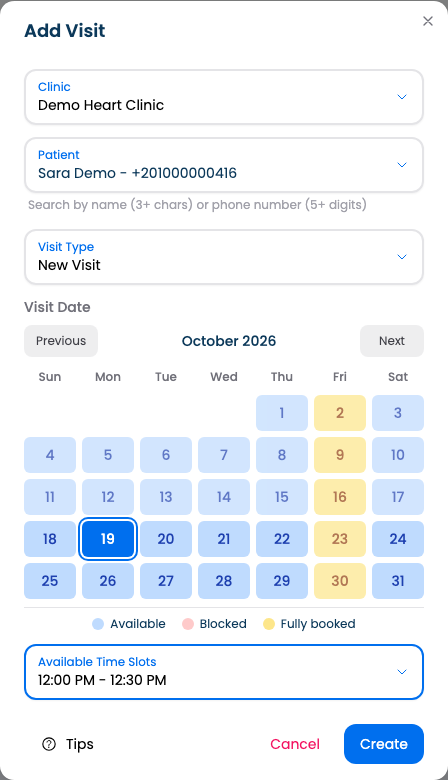
Choose the patient, clinic and visit type
Pick the patient, the clinic, and whether this is a new visit or a follow-up.
To find a patient, type at least 3 letters of their name or 5 digits of their phone.
- 3
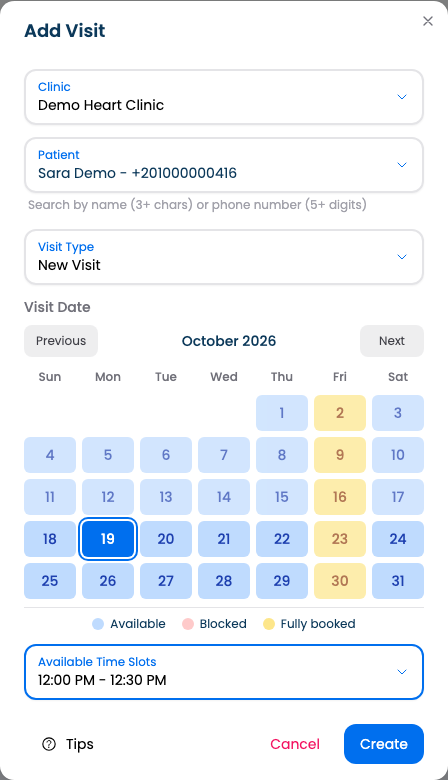
Pick a day and a time
The calendar marks which days have free times, which are blocked and which are fully booked. Pick a day, then a free time.
Click Create.
Find your visits
- 1
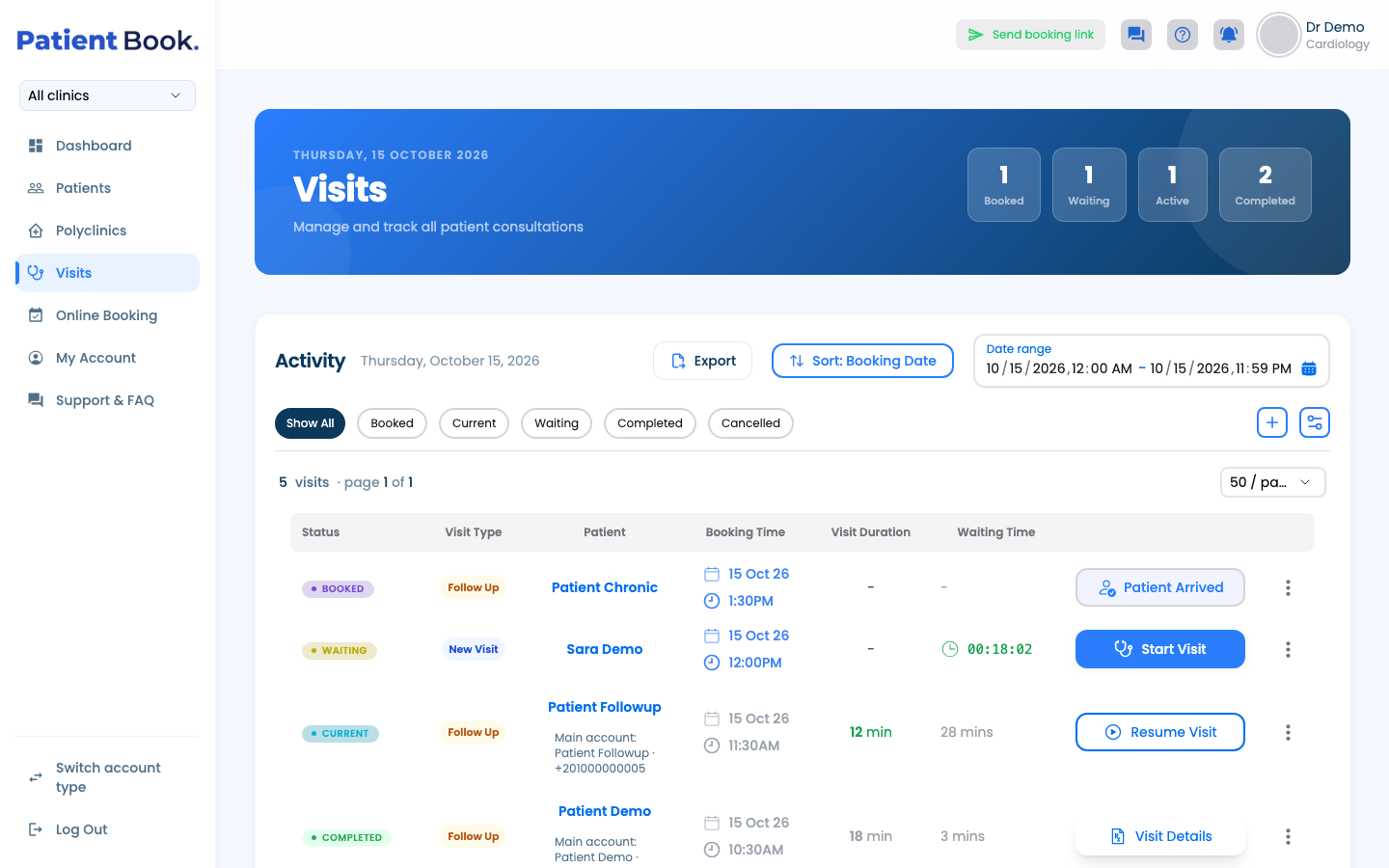
The visits list
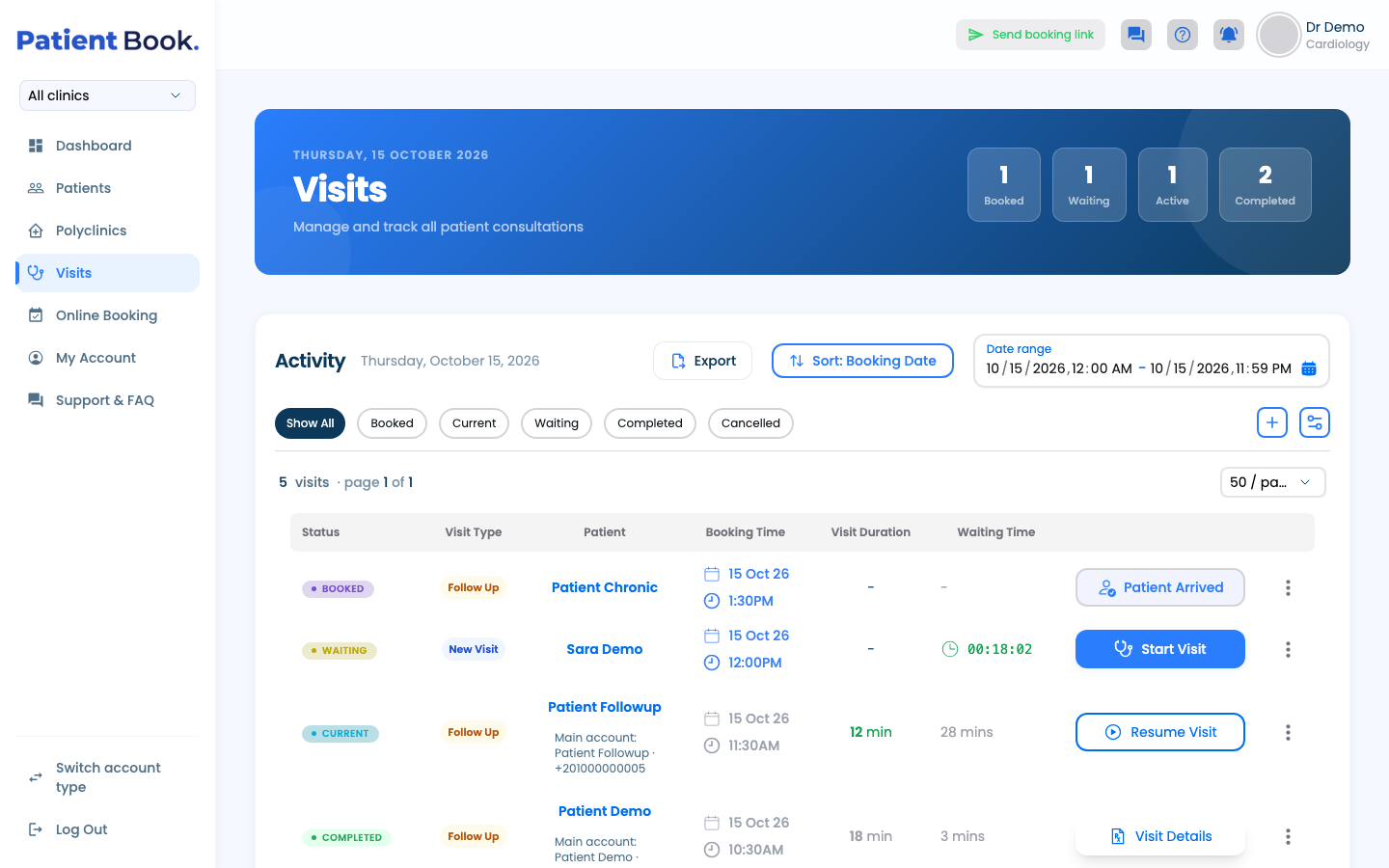
Visits opens on today. Filter by status, change the date range, sort, or export the list to Excel.
Questions and answers
Why are there no free times to book?
Free times come from your weekly hours, so a day without hours is closed. Blocked times and fully booked days have none either. A date-range schedule replaces the weekly hours between its dates.
Can new visits and follow-ups take different lengths of time?
Yes. In Slot Durations, in the online booking settings, set a length and a break for each visit type.
On the web vs in the app
| What | Web portal | App |
|---|---|---|
| Where you start | Dashboard, the Visits page, or after adding a patient | Visits tab or a patient's file; Home for assistants |
| Who books | Doctors | Doctors and assistants |
| The day's visits | A table, today by default, with a date range | Cards, with a date filter |
What's next
Updated: 18 October 2026
Still stuck?
Our team answers on WhatsApp and email.